Converter / Without codecs
Open HEIC on Windows without the Microsoft Store codec
Updated
The route on this page decodes HEIC files on this PC with WebAssembly. The photos are not uploaded, and nothing is installed on the machine.
The standard advice for HEIC on Windows is “install HEIF Image Extensions from the Microsoft Store”. On plenty of PCs that advice is a dead end. This page is for those PCs: what actually blocks the Store route, and how to get a JPEG copy that opens everywhere using nothing more than the browser already on the machine.
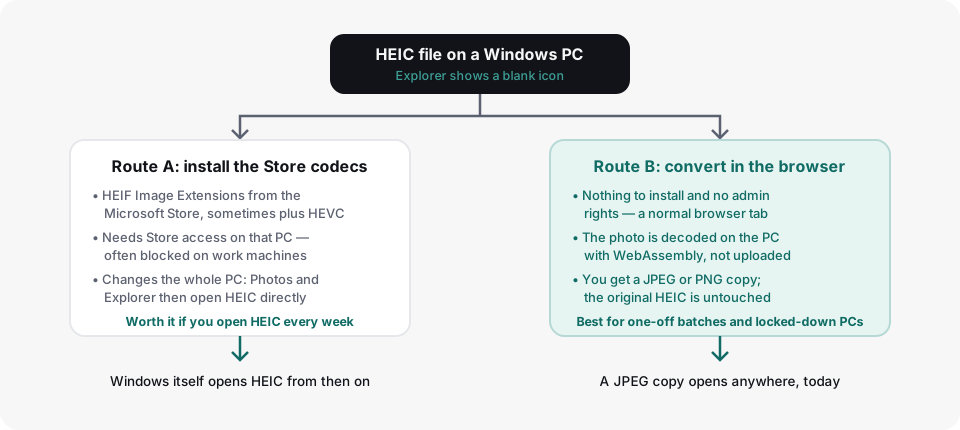
Why the Store route fails so often
Windows can open HEIC natively, but only after two codecs are present: HEIF Image Extensions (the container) and, on many machines, an HEVC video codec (the compression inside). Both normally come from the Microsoft Store, and that is exactly where things go wrong:
- Managed work PCs block the Store. Corporate IT commonly disables the Microsoft Store by policy, or restricts it to an approved catalogue. If the Store tile is missing, opens to an error, or the Get button is greyed out, you are on one of these machines and no amount of retrying will change it.
- No admin rights. Even where the Store works, some installations prompt for an administrator account you do not have on a shared, school or kiosk PC.
- The HEVC half is awkward. Microsoft has at times charged a small fee for the HEVC Video Extensions, and the free “from Device Manufacturer” listing that many people relied on was withdrawn. Installing HEIF Image Extensions alone can leave Photos still refusing the file, which looks like the fix failed when really half of it is missing.
- Some Windows editions have no Store at all. Windows 10 LTSC and most Windows Server installations ship without it.
None of this is your photo's fault. The file is fine; the machine is simply not allowed, or not able, to learn the format.
The route that works anyway: convert in the browser, on this PC
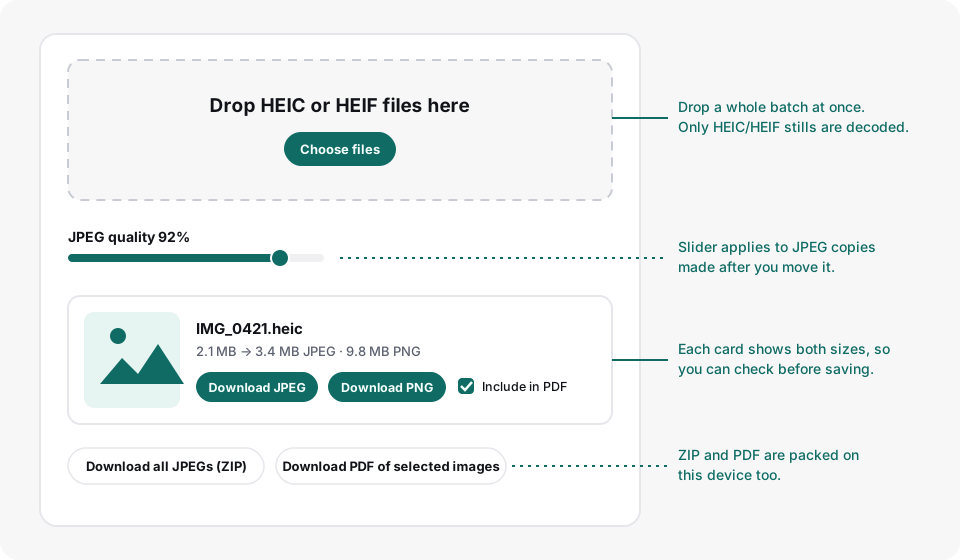
A browser does not need Windows codecs to decode HEIC, because it can bring its own decoder as WebAssembly — a small program that runs inside the tab with no installation and no admin prompt. That is what this site's converter does: it loads an open-source decoder (libheif), turns each HEIC into pixels in the browser's memory, and re-encodes a JPEG or PNG copy which you download. The photo never leaves the PC; the page's own code is the only thing fetched from the network.
- Open the converter in Edge, Chrome or Firefox — whichever the PC already has. On a locked-down machine Edge is always there.
-
Drop the
.heicor.heiffiles into the box, or use Choose files. A whole batch at once is fine; files are converted one after another. - When each card shows a thumbnail, choose Download JPEG (or PNG if a tool has asked for that). For a batch there is a single ZIP download, and ticked photos can become one A4 PDF.
Check the JPEG actually opened
Take ten seconds to confirm the copy is good before you delete anything or attach it to a form:
- Double-click the downloaded JPEG. Photos, Paint and Explorer's preview pane all open JPEG on every Windows installation, codecs or not. If it displays, the conversion worked.
- Glance at the size on the card. Do not be alarmed if the JPEG is larger than the HEIC — HEIC compresses more efficiently, which is why Apple adopted it. A JPEG of roughly the same order of magnitude is normal; a 0 KB file is not.
- Know what is not carried over. The copy is re-encoded from decoded pixels, so EXIF metadata — capture date, camera settings, GPS location — is not in the JPEG. Keep the original HEIC if that matters to you.
Common failures, and what they mean
-
“Not a HEIC or HEIF file.” The most frequent cause
is a Live Photo transfer: alongside
IMG_1234.heicthe phone also copiesIMG_1234.mov, the three-second video clip. The.movis a video, not a photo, and no image converter will turn it into a still. Drop the.heicwith the same number instead. - “This file is already a JPEG.” Some transfer routes (Mail, many chat apps) convert on the way out, so the file that reached the PC is JPEG despite coming from an iPhone. It needs no conversion — if something still refuses it, the objection is probably file size, which is a separate limit.
- The card shows an error on one file in a batch. A partially copied file — a USB transfer interrupted mid-way — can be too damaged to decode. Copy that photo from the phone again.
- The page sits on “Converting…” for a long time. Panoramas and very large stills are decoded entirely in memory and can take a while on a modest PC. One file at a time, it will get there; it has not hung unless the browser says so.
- Nothing happens at all in a very old browser. The decoder needs WebAssembly, which every current Chrome, Edge, Firefox and Safari has. A years-out-of-date browser on an unmaintained PC may not.
What this route will not do
-
It does not teach Windows itself to open HEIC. Explorer thumbnails
for
.heicfiles will stay blank; you get working JPEG copies instead. - Live Photo motion is left out — only the still is decoded.
- It does not bypass IT policy. It needs no policy exception because nothing is installed, but if the machine blocks this website too, that is a conversation with your IT team.
If you later get a PC where you can install the codecs and you handle HEIC every week, the Windows guide compares that route honestly — for daily HEIC work the one-off install is the better tool.