Converter / On a Mac
Convert HEIC to JPEG on a Mac without the Photos app
Updated
The browser route on this page decodes HEIC on this Mac with WebAssembly. This site does not receive the photos. There is no account. Photos.app is not used.
A Mac can already see an iPhone still. Quick Look
previews .heic. Preview opens it. Safari displays
it. That is not the job most people are actually stuck on.
The job is a JPEG copy that a Windows inbox, a council form,
or a chat app will take, without first pouring the pictures
into the Photos library. This page is that job: the honest
Mac routes that skip Photos, and the in-browser conversion that
never leaves this machine.
Why people want to skip Photos
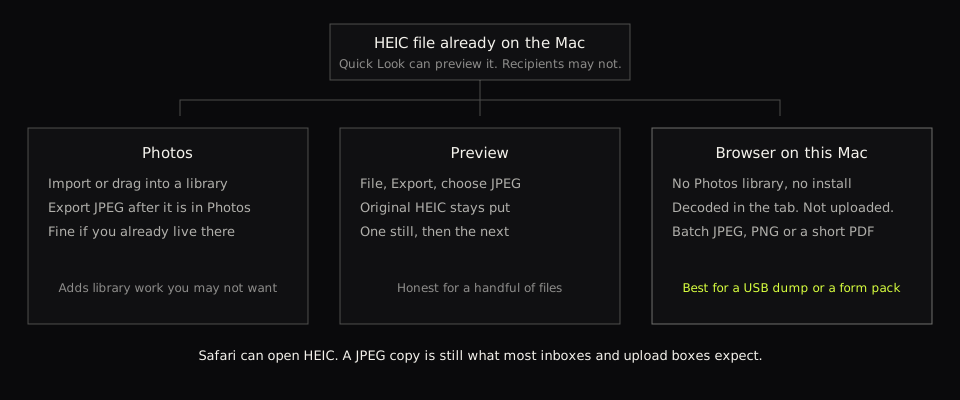
Photos is a library, not a file tool. Drag a folder of HEIC stills onto it and macOS will usually import them. They land in Recents, they sync if iCloud Photos is on, and they sit next to family pictures you did not mean to mix with a passport scan. Exporting JPEG from Photos then means selecting those items again and using File → Export. That is a reasonable daily habit if you already live in Photos. It is a poor fit for a one-off USB dump, a work Mac that is not your personal library, or a shared machine you should not be filling with other people’s documents.
Work Macs add a second reason. A managed laptop may already have a supervised Photos library, or none that you should touch. You still need JPEG copies. Importing into Photos is not required for that, and it is not the only Apple tool that can write a JPEG.
Preview: the built-in export, one still at a time
Preview opens HEIC on every current Mac. That is viewing. To write a JPEG without Photos:
- Double-click the
.heicso it opens in Preview (or right-click → Open With → Preview). - Choose File → Export. In the format list pick JPEG. Set a quality you can live with.
- Save the new file somewhere you will find it. The original HEIC is unchanged if you exported rather than overwriting.
This is the right tool for one, two, or three files. It is honest and local. It becomes tedious on a folder of forty stills from a holiday or a claim: each export is its own dialogue. Preview can open several images, but it will not turn a dropped folder into a matching folder of JPEGs in one click. If that is the batch you have, skip ahead to the browser route or the Terminal command below.
Terminal: sips when you already use it
macOS ships sips (scriptable image processing
system). It reads HEIC and can write JPEG without Photos and
without a website. In Terminal, from the folder that holds
the stills:
sips -s format jpeg IMG_0421.heic --out IMG_0421.jpg
A simple loop over *.heic will do a whole
folder. That is a real, local, no-upload path, and it is
the one I would use on my own Mac if I already had Terminal
open. It is a poor recommendation as the only answer on a
how-to for someone who just wants a JPEG for an email. A
mistyped output path can write into the wrong place. This
site’s converter exists for the same conversion when you
would rather not type a command.
Shortcuts and Automator can wrap the same idea into a drop target. They take setup time. If you convert HEIC every week on this Mac, that setup pays off. If this is one afternoon, do not build a shortcut first.
Convert in the browser on this Mac
The converter loads an open-source decoder (libheif, as WebAssembly) and re-encodes JPEG or PNG in the tab. Safari, Chrome and Firefox on a current Mac all run it. Photos is not launched. Nothing is imported. The stills stay on this Mac.
-
Put the files where the Mac can see them: Downloads, a
USB volume, an iCloud Drive folder of originals, or a zip
you have already extracted. The filename should still end
in
.heicor.heif. - Open the converter in Safari or another current browser. You do not install a codec pack. You do not grant Photos access.
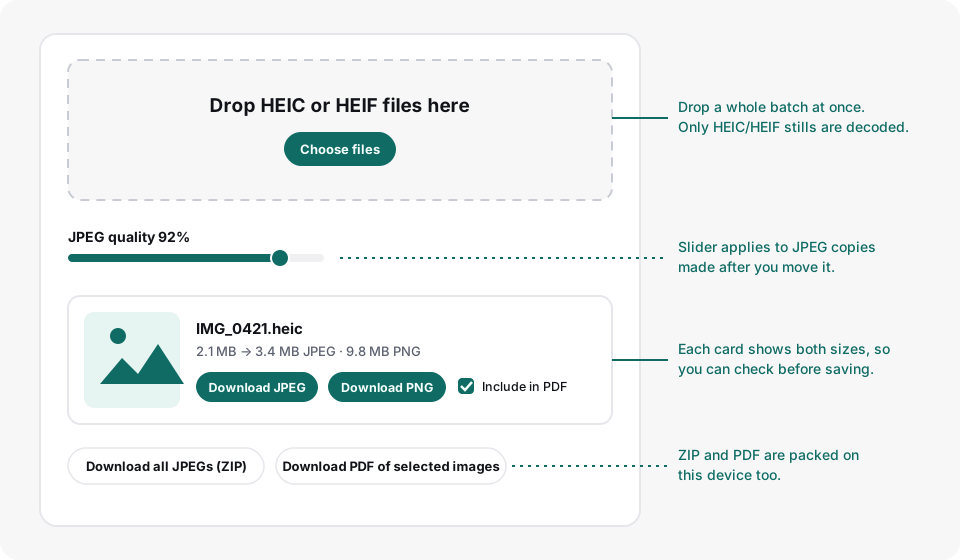
- Drop several stills at once, or use Choose files. They convert one after another so a large batch is less likely to exhaust memory.
- When each card shows a thumbnail, download JPEG. Use PNG if a tool named PNG. Tick the stills and build one A4 PDF if a form wants a single attachment.
Closing the tab discards anything you have not downloaded. The original HEIC on disk is never rewritten.
Seeing HEIC is not the same as sending HEIC
This is the Mac-specific confusion. Because Quick Look
works, it feels as if the format problem is solved. It is
solved for you, on this Mac. It is not solved for
the person on Outlook, a Windows PC without codecs, or a
portal that allowlists .jpg. AirDrop to another
Apple device often stays HEIC. A Finder copy onto a USB
stick stays HEIC. Mail on the iPhone often converts on the
way out; Mail on the Mac, attaching a file from disk, often
does not. If the recipient asked for JPEG, send a JPEG copy.
Do not rename .heic to .jpg.
Size is a separate sentence. HEIC is usually smaller than the same still as JPEG, which is why Apple adopted it. The JPEG this page writes can be larger than the HEIC it came from. That is normal. If an email bounce is about megabytes, lower the quality slider and add the HEIC again; the slider applies to the next files, not to cards already in the list. More on that trade-off is in HEIC vs JPEG for email and WhatsApp.
Where the HEIC files actually are
Stills that trip people up on a Mac usually arrived without a conversion step: a USB copy with “Keep Originals”, an iCloud.com download of originals, a zip from someone else’s phone, or AirDrop of the original file. Settings → Photos → “Transfer to Mac or PC” → Automatic on the iPhone writes JPEG during a future USB copy. That does nothing for the HEIC files already sitting in Downloads. Image Capture can copy from a plugged-in iPhone into a folder without Photos; if the phone is set to keep originals, those copies are still HEIC and still need a JPEG if the destination wants one.
If you would rather new camera shots were JPEG, that is Settings → Camera → Formats → Most Compatible on the iPhone. It does not rewrite the library you already have. Background is on why iPhone photos are HEIC.
Check the JPEG before you send it
-
Open the downloaded
.jpgin Preview. If it displays, the conversion worked. Quick Look on the new file should no longer say HEIC. - Glance at the sizes on the converter card. A JPEG of the same order of magnitude as the HEIC is normal. A 0 KB file is not.
- EXIF such as capture date and GPS is not copied into the JPEG this tool writes. Keep the HEIC if you need that metadata. For a form or a landlord, the stripped copy is often what you wanted.
What this will not do
- It will not import, organise, or sync anything in Photos. That is the point.
-
Live Photo motion is omitted. Drop the
.heicstill, not the sibling.mov. See Live Photos, bursts and panoramas. - Very large panoramas are decoded in memory and can be slow. One file at a time is enough.
- It will not teach every Mac app to prefer JPEG. You get copies you attach yourself.
If the machine in front of you is Windows, use the Windows batch guide instead. The decoder is the same; the Photos-library problem is not.