Converter / On Windows
Convert iPhone HEIC to JPEG on Windows (batch, in the browser)
Updated
Files you drop are decoded on this Windows PC with WebAssembly. This site does not receive the photos. There is no account.
Copy a batch of iPhone photos onto a Windows PC and Explorer will often show a blank icon, or Photos will ask for extra codecs. That is HEIC: the still-image format many iPhones write by default. JPEG is what Word, most email, and most upload boxes still expect.
Batch convert in Edge or Chrome
- Open the converter in a current browser. You do not need the Microsoft Store HEVC pack for this page.
-
Drop several
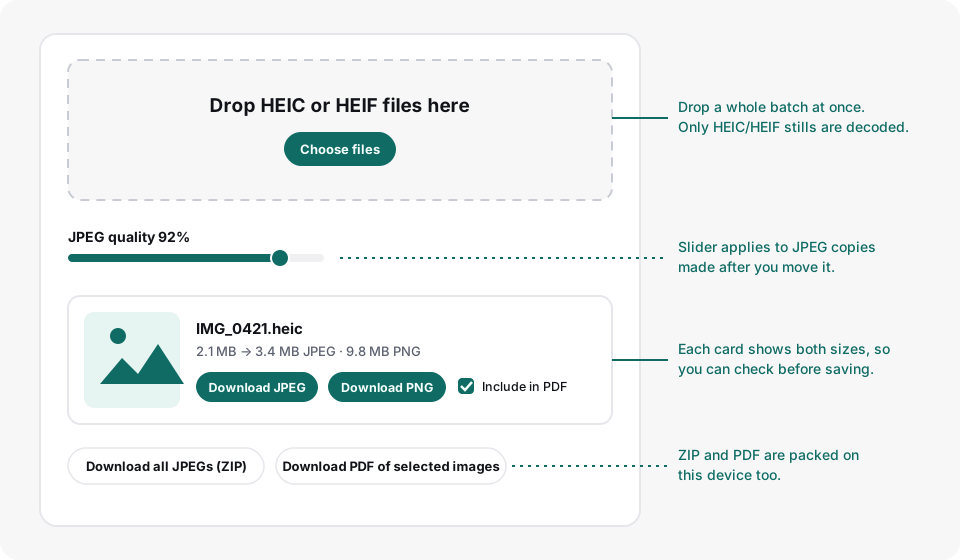
.heicor.heiffiles at once, or use Choose files. A USB copy from the phone, a zip from iCloud, or files sitting in Downloads all work if they are still HEIC. - Wait until each card shows a thumbnail. Conversion is one file after another so a large batch is less likely to exhaust memory.
- Download each JPEG, or choose Download PNG on the same card if a tool wants PNG rather than JPEG. If a form wants one attachment instead of a folder, tick the photos and build a PDF.
Why Windows struggles with HEIC
Apple has used HEIC since iOS 11. Windows can open it after you add Microsoft’s HEIF extensions (and, on some PCs, an HEVC codec). That is a reasonable choice if you want Photos to preview the originals. It is optional here: this page re-encodes a JPEG copy in the tab you already have.
A JPEG copy is also the practical fix when a website refuses
.heic. Format is not the same as file size: a full-resolution
iPhone still can still be several megabytes as JPEG. If an upload box
rejects the file for size, that is a separate limit.
The other Windows routes, honestly compared
The browser is not the only way, and it is not always the best way. Here is when each alternative earns its place.
- Install Microsoft’s codecs. Search the Microsoft Store for “HEIF Image Extensions” (free). Some PCs also need an HEVC codec, which Microsoft has at times charged a small fee for, though many devices ship with a manufacturer-provided version. Once installed, Explorer thumbnails and the Photos app work, and you can open a HEIC in Paint or Photos and use “Save as” to write a JPEG. This is the right choice if you handle HEIC files every week — but it is a per-machine change you may not be allowed to make on a work PC. If the Store is blocked on your machine, see opening HEIC without the Store codec.
- Change the transfer setting on the iPhone. Settings → Photos → “Transfer to Mac or PC” → Automatic makes the phone convert to JPEG when copying over USB. Convenient for future transfers; it does nothing for the HEIC files already on your PC.
- Email the photo to yourself from the iPhone. Mail converts to JPEG on the way out. Fine for one photo; tedious for thirty, and the photo passes through a mail server, which the in-browser route avoids.
The browser converter wins when the batch is one-off, when you cannot install software, or when you would rather the photos stayed on the machine. The codec install wins when HEIC is part of your daily workflow.
Checking the result
Each converted card shows the original size and the JPEG size, so you
can sanity-check before downloading. Do not be surprised if the JPEG
is larger than the HEIC it came from: HEIC compresses more
efficiently, which is exactly why Apple adopted it. The
downloaded filename keeps the original name with a
.jpg ending, which is what most upload boxes check for.
If the portal has a size cap, lower the quality slider and add the
file again; the slider applies to the next files you convert, not to
ones already in the list.
One honest caveat: the JPEG copy is re-encoded from decoded pixels, so EXIF metadata such as capture date and GPS location is not carried over. Keep the HEIC original if that matters.
What this will not do
- Live Photo video is omitted. Only the still is decoded.
- It will not install codecs for the rest of Windows.
- Very large panoramas can be slow; they are decoded in memory.
For the camera setting that writes JPEG on new shots, see why iPhone photos are HEIC and how to get a JPEG that will upload.