Converter / Email and WhatsApp
HEIC vs JPEG for email and WhatsApp: size, compatibility, and when to convert
Updated
If you convert here, the HEIC still is decoded on this device. This site does not receive the photo. There is no account. Email and WhatsApp are separate apps; they see only the file you attach afterwards.
Two complaints get bundled into one: “they cannot open my
iPhone photo” and “the message is too big”. HEIC and JPEG
answer those complaints differently. HEIC is usually the
smaller original. JPEG is the type most inboxes, Windows
PCs, and Android chats already understand. Email and
WhatsApp sometimes convert for you, sometimes compress on
top, and sometimes send the .heic unchanged.
This page separates those behaviours so you can choose a
JPEG copy on purpose instead of hoping the other app did
the right thing.
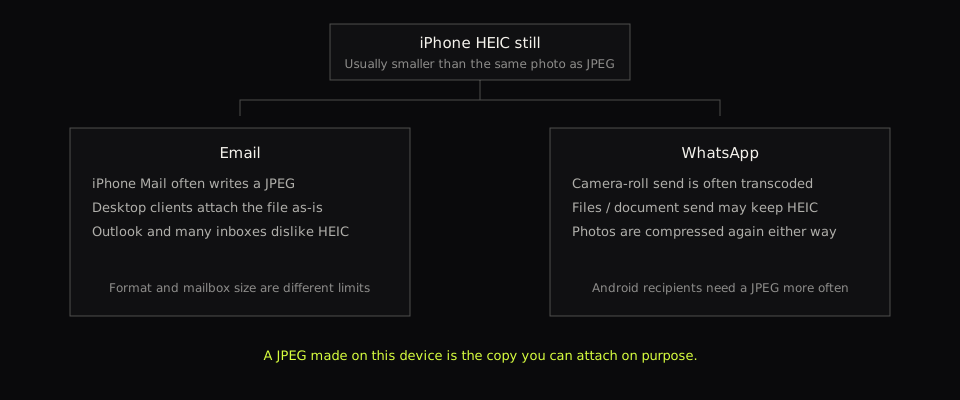
Size, without invented percentages
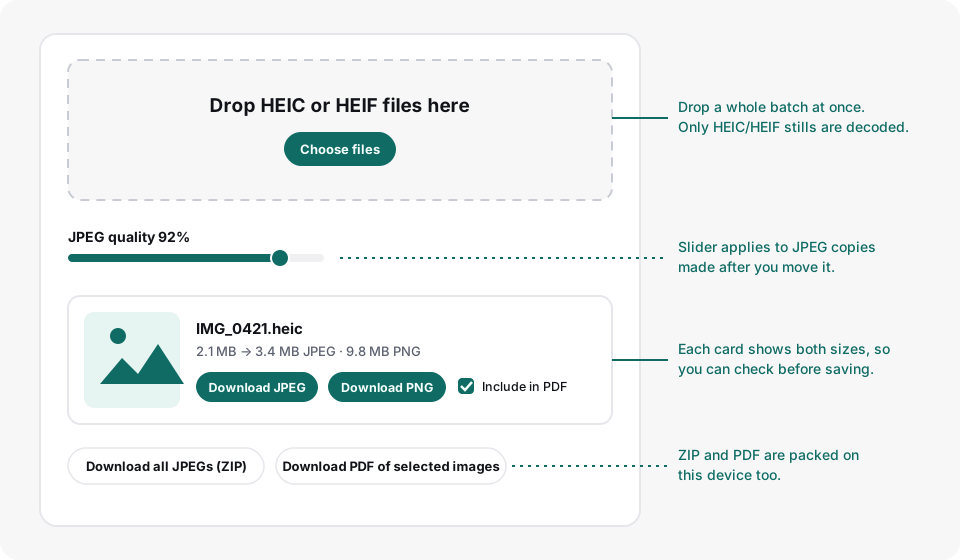
Apple adopted HEIC because a typical camera still is noticeably smaller than the same still stored as JPEG, at a similar visual quality. That saving is why a full camera roll and an iCloud library fit more easily. It is also why a JPEG copy can look like it “got bigger” after you convert. The converter card shows both sizes so you can see that before you download. Do not treat a larger JPEG as a failed convert. Treat a 0 KB file as a failed convert.
WhatsApp then applies its own photo compression on the ordinary “send photo” path. Converting to JPEG first does not stop that second squeeze. You still lose some detail relative to the HEIC on the phone. What you gain is a file the other person can open, and a chance to pick quality before WhatsApp sees it. Sending the same still as a document (the paperclip / Files route) often keeps more of the original bytes, including a HEIC container that an Android phone may then fail to preview.
Email limits are about the whole message, not the
extension. Providers differ. Many consumer mailboxes sit
somewhere around a 10-25 MB cap per message; some
work systems are stricter. A single full-resolution JPEG
can be several megabytes. Four of them can bounce even
though each one is a perfectly valid .jpg.
HEIC would have been smaller, and still might bounce if you
attach a handful of originals. Format and megabytes are
different error texts. Read the bounce.
What email actually does with HEIC
Mail on the iPhone has, for years, tended to send a more compatible still when you pick a photo from the library and address a non-Apple recipient. That is why emailing a picture to yourself is old advice, and why it still works for one shot. The photo does pass through a mail server. This site’s converter does not. For a single holiday snap, Mail is fine. For a pack of claim photos you would rather not put in the sent folder of a work account, convert first and attach the copies you meant to send.
Mail, Outlook and Apple Mail on a computer
are more literal. If you attach
IMG_0421.heic from Downloads, many desktop
clients send that file as-is. The other person then gets
whatever their client can decode. Outlook on Windows has
long been a weak HEIC viewer unless the PC already has
codecs. Gmail in the browser may show a preview, or a
download, or a blank thumbnail, depending on the account
and the moment. None of that is something you can promise
from the send side. A JPEG attachment is the boring file
that opens in the same places a photo has opened for
twenty years.
iMessage and other Apple-to-Apple mail can keep HEIC because both ends speak it. That success is why the same file then fails when you forward the thread to a Windows colleague. If the last hop is not Apple, assume JPEG.
What WhatsApp actually does with HEIC
WhatsApp is not a gallery. It is a chat that sometimes re-encodes. On an iPhone, picking a still from the camera roll and sending it as a photo usually means WhatsApp makes its own compressed copy. Recipients often receive JPEG (or another common bitmap), not the HEIC sitting in your library. That is why “it worked in WhatsApp” does not prove the original file is friendly.
The failure cases are specific:
-
You share from Files, iCloud Drive, or “as a document”
so the other person gets the real
.heic. An iPhone may open it. Many Android installs will not, or will open it only inside Google Photos after a save. - You AirDrop or USB-copy the HEIC to a computer, then send that file from WhatsApp Web. Web and desktop clients are closer to “attach this bytes” than the phone’s camera-roll picker.
- The other person can open the picture but it looks soft. That is WhatsApp’s photo compression, not HEIC. Converting here first will not restore detail WhatsApp throws away on send.
If you are on Android and the iPhone still arrived as HEIC, the Android guide covers opening it in Chrome without another upload. This page is the share-format question: send JPEG when the other end is mixed, and do not rely on WhatsApp’s photo path if you need a faithful file for a form. Forms are a different problem again: portals refuse HEIC even when WhatsApp previewed the same still.
When to convert first
Convert to JPEG on this device when you need the attachment to be a known type before the other app sees it:
- A Windows recipient, Outlook, or a work mailbox.
- WhatsApp Web, or send-as-document, and an Android recipient.
- Several stills you will also upload to a form that wants
.jpg. - You want EXIF (including location) left out of the copy this tool writes.
You can skip converting when you are sending from the iPhone Photos picker through Mail or WhatsApp’s ordinary photo send to someone who already received a preview, and you only needed them to see the picture. That path is convenient. It is also lossy and not under your quality slider. It is a bad path for a document photo you may need to reuse at full still resolution.
Do not convert “to make it smaller” as a general rule. HEIC is already the smaller original more often than not. Convert to make it open. If the bounce is size, lower JPEG quality, send fewer files, or use a link your workplace already approves. This converter will not invent a tiny full-resolution still.
Make the JPEG here, then attach it yourself
- Open the converter on the computer or phone that already has the HEIC files.
-
Drop the
.heicor.heifstills. Live Photo video (.mov) is rejected on purpose; use the still with the same number. - Wait for thumbnails. Download JPEG. If the mailbox is tight, lower the quality slider and add the files again before you download.
-
In Mail, Gmail, Outlook or WhatsApp, attach that
.jpgfrom Downloads. You are sending a normal photo. The HEIC can stay on the device.
On a Mac you can also export from Preview without Photos; that route is in HEIC to JPEG on a Mac without Photos. On Windows, Explorer will not preview HEIC until codecs are installed; batch convert in the browser instead of hoping Outlook will.
.heic.
A short comparison you can trust
| HEIC original | JPEG copy from this tool | |
|---|---|---|
| Typical file size | Smaller for the same still | Often larger; quality slider helps a little |
| iPhone Mail photo send | Often converted for you | Already JPEG; Mail will not need to guess |
| Desktop email attach | Often sent as-is; Outlook may fail | Opens like any other photo |
| WhatsApp photo send | Usually transcoded and compressed | Also compressed by WhatsApp |
| WhatsApp as document | May arrive as HEIC | Arrives as JPEG |
| EXIF / GPS in this tool’s copy | Still on the original file | Not copied into the download |
Camera-roll behaviour in Mail and WhatsApp changes with app versions. The row that stays stable is desktop attach and send-as-document: those send the bytes you picked.
What conversion will not fix
- A blurry or badly cropped document. JPEG will not make it readable.
- WhatsApp’s extra photo compression after you hit send.
- A mailbox that rejects the whole message for size.
- Live Photo motion. Only the still is decoded.
If the real problem is a government or HR upload box, skip chat advice and use why forms reject HEIC or a one-page PDF of the selected stills.